OLED startup
Confirm the screen identifies the script/slot you installed and that the Zen has completed startup. If the display is blank, test a basic device connection first.
Learn how to navigate and verify settings while respecting each script’s own controls.
Consult the exact product guide for button combinations. The information below applies generally.
Confirm the screen identifies the script/slot you installed and that the Zen has completed startup. If the display is blank, test a basic device connection first.
Use the documented shortcut for your script. Some scripts use controller buttons, others differ by version; do not guess combinations.
Check the selected weapon, optic and stance before changing recoil or other values. Confirm the active profile displayed.
Save using that script’s supported method, disconnect ALL Zen cables, reconnect, then verify the exact value remains.
A personalised protected file can refuse to run on a different Zen. Only the original seller should handle a legitimate licence reissue.
If settings behave unpredictably, preserve your working backup and record the exact sequence before changing multiple variables.
Use the local Setup Sheet to save profile values and notes on your own device. It does not connect to the Cronus Zen or alter script files.
Open Zen Setup Sheet →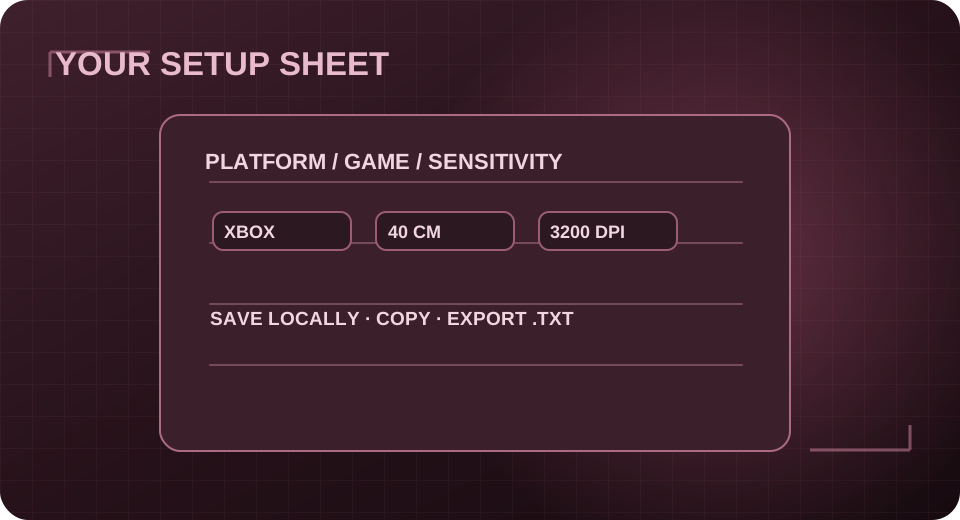
Ask the official Zare Scripts support team for the relevant product version.